VGZ to WMA & VGZ to MP3
1. Download out_lame from http://out-lame.sourceforge.net/
2. Install it (while Winamp is closed)
3. Open Winamp
4. Make a playlist containing the files you want to encode:
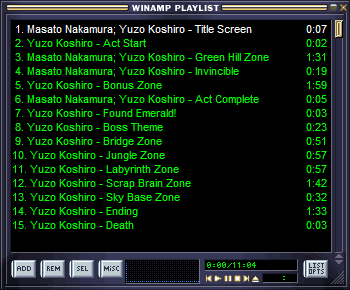
5. Have a listen, make sure you're happy with the way it sounds and how each track repeats/fades out etc.
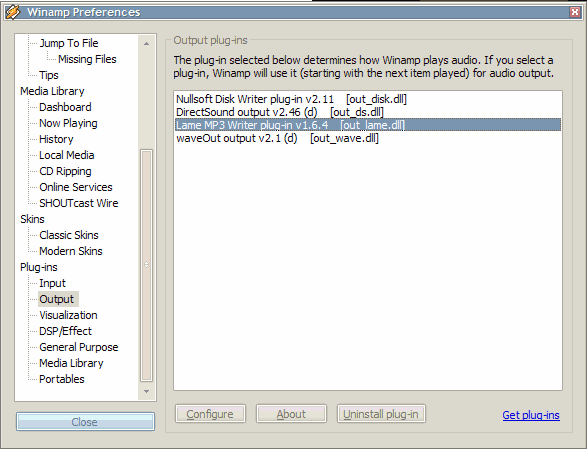
6. Press Ctrl+P to open Winamp's preferences and click on Output, then choose "Lame MP3 Writer"
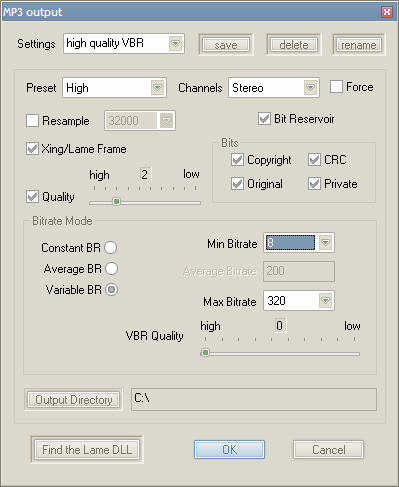
7. Click on "Configure" to see all the LAME MP3 options (it's up to you to decide what bitrate you want, I recommend not resampling), and choose the output directory.
8. Click OK and then Close to get back to the main window, then click Play. The files will play silently and faster than normal (depending on your CPU). Wait for them to finish.
9. Important! Go back to the preferences (Ctrl+P) and choose DirectSound output, otherwise every file you play in Winamp will silently make an MP3 instead!
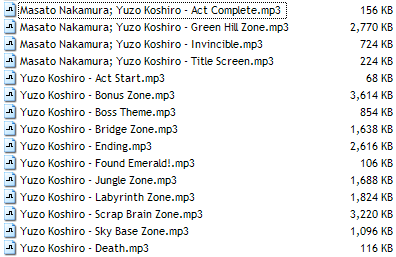
10. Go and find the directory you chose in step 7; there are your files.
2. Install it (while Winamp is closed)
3. Open Winamp
4. Make a playlist containing the files you want to encode:
5. Have a listen, make sure you're happy with the way it sounds and how each track repeats/fades out etc.
6. Press Ctrl+P to open Winamp's preferences and click on Output, then choose "Lame MP3 Writer"
7. Click on "Configure" to see all the LAME MP3 options (it's up to you to decide what bitrate you want, I recommend not resampling), and choose the output directory.
8. Click OK and then Close to get back to the main window, then click Play. The files will play silently and faster than normal (depending on your CPU). Wait for them to finish.
9. Important! Go back to the preferences (Ctrl+P) and choose DirectSound output, otherwise every file you play in Winamp will silently make an MP3 instead!
10. Go and find the directory you chose in step 7; there are your files.